5 Best Screen Recorders for Software Tutorials
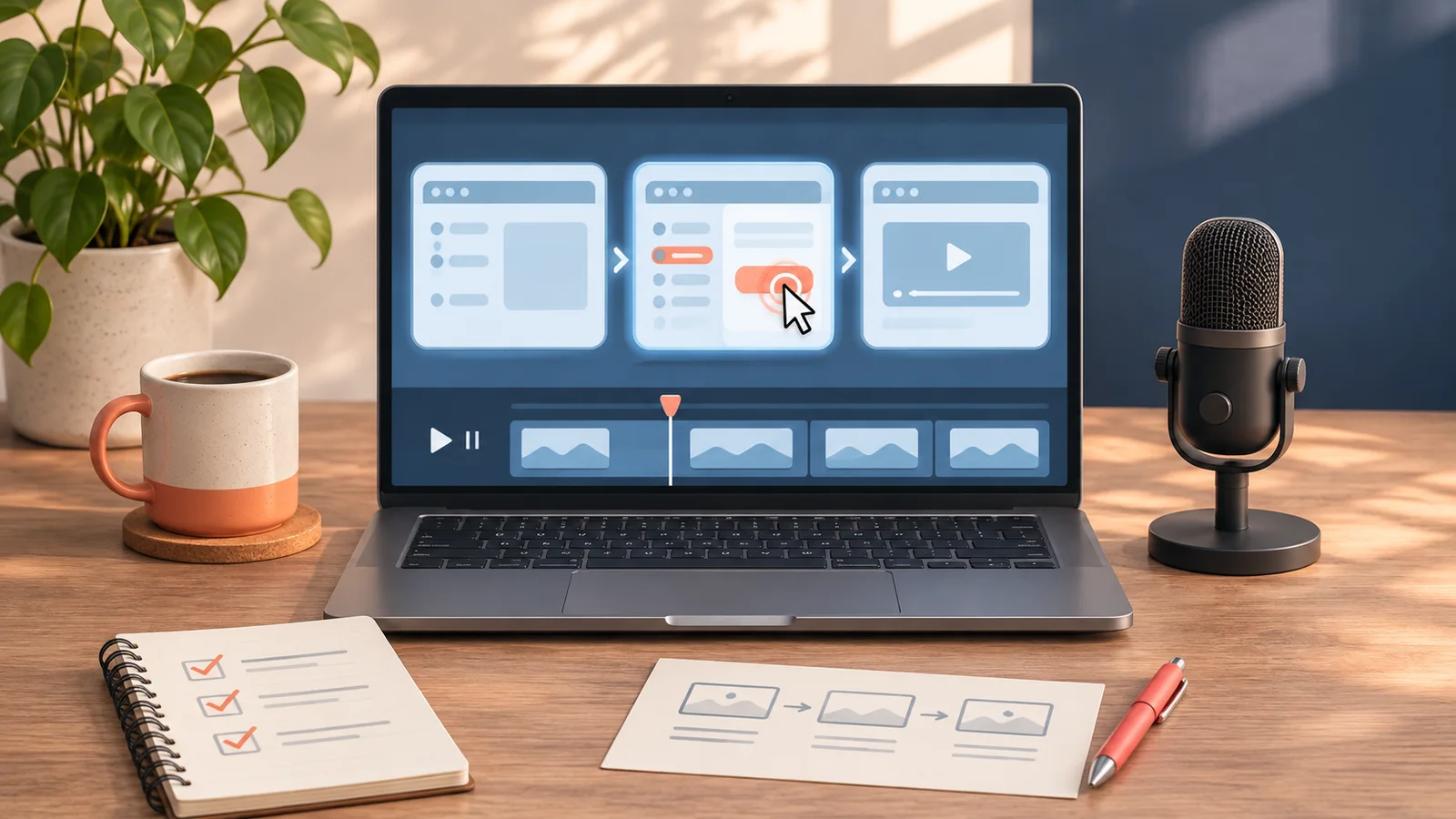
A good software tutorial shows viewers exactly where to click and what should happen next. The right screen recorder depends on what you deliver. A support reply needs an easy link. A help-center lesson needs a file or an embed you can maintain. A product launch video may need tighter control over what the viewer sees.
Loom is our first choice for everyday team tutorials because its hosted links and comments suit quick explanations. Camtasia Snagit is a better fit for support teams that also need annotated screenshots. Screen Studio suits Mac users producing polished demos, OBS Studio gives teams control over local recordings, and Screencastify makes sense for browser-based training with questions or polls.
How we ranked the tools
This is an editorial ranking based on official product documentation and pricing checked November 16, 2026. We ranked for small teams publishing repeatable software walkthroughs. We considered capture options, ways to show where an action happens, how much cleanup the tool supports, and where the viewer can watch the finished lesson. The ranking reflects those documented workflows rather than recording benchmarks. Prices are public examples with the billing period shown.
| Tool | Best fit | Pricing example | Main constraint |
|---|---|---|---|
| 1. Loom | Quick tutorials shared as links | Free Starter. Business $18/user/month on monthly billing | Starter screen recordings cap at five minutes |
| 2. Camtasia Snagit | Support clips and annotated screenshots | Business $48/user/year, billed yearly | Included Screencast hosting covers up to 25 videos |
| 3. Screen Studio | Polished product demos on Mac | Subscription. Check current price with the vendor | macOS only. Hosted links cap at 30 minutes |
| 4. OBS Studio | Local capture with custom layouts | Free and open source | Arrange your own editing and delivery |
| 5. Screencastify | Browser tutorials with knowledge checks | Starter $18/user/month on monthly billing | Free allows up to 10 videos with a watermark |
1. Loom for quick tutorials shared as links
Think of a teammate asking how to review a report or a customer asking where to find a setting. Loom can capture a screen and narration, create a hosted viewing link and collect comments in the player. That makes the recording part of the conversation. You can refer people back to the same explanation if the question comes up again. Loom offers desktop recording on Mac and Windows and a Chrome extension for browser capture. Check device compatibility if system audio or a specific window is part of the lesson. Screen recorder features · Device compatibility
Starter is free, with a five-minute limit for ordinary screen recordings and a 25-item video and screenshot allowance according to Atlassian’s support guide. Business is listed at $18 per user per month on monthly billing and includes video downloads and basic editing. Business + AI is listed at $24 per user per month on monthly billing and adds features including chapters and text-based editing. The Starter pricing page lists live meeting capture separately, so its meeting allowance should not be used to estimate tutorial length. Starter plan limits · Plans and pricing
Start here if you mostly send a link in chat, email or a support ticket. For a permanent help center, also confirm who owns each recording and check whether an intended viewer can open the link. If your publishing process requires keeping video files, factor downloads into the plan decision.
2. Camtasia Snagit for support clips and annotated screenshots
Snagit suits a support team that needs to answer the same question in two forms. For example, capture the path to an account setting as a short video and use a marked-up still image for readers who want to scan the instructions. The desktop app supports webcam and audio capture, drawing during recording, and trimming or combining clips afterward. Its editing controls fit quick corrections and short stitched lessons. Snagit product overview · Capture and editing features · Video capture instructions
TechSmith lists the Business plan at $48 per user per year, billed yearly, with transferable licenses and support for Windows 10 and 11 and macOS 14 or later. The plan includes private hosting for up to 25 videos on Screencast. A team that publishes a large library should decide where to store and serve its recordings before it makes Screencast links part of every article. Business pricing, compatibility and hosting
3. Screen Studio for polished product demos on Mac
Screen Studio is our pick when viewers need to follow small controls in a polished product walkthrough. The app captures cursor movement separately so you can adjust its size and smooth its motion in the finished video. Automatic zoom uses recorded clicks to choose where to focus. For a tooltip revealed by hovering or a field a viewer needs to read, the guide recommends choosing the focus area manually if there is no click. Product features and pricing section · Auto zoom guide
The app is Mac only. Check the vendor’s requirements for your processor and macOS version. Short videos can be shared as links, with a documented 30-minute limit for hosted recordings. Longer projects require a file export for delivery. Screen Studio sells subscriptions and says new purchases of its old one-time license have ended. We could not reliably verify a current numeric subscription price from the public pages, so check the vendor’s displayed total and billing period before buying. System requirements · Sharing limits
4. OBS Studio for local capture and custom layouts
Choose OBS Studio when you want a reusable recording setup. A scene can combine a window, webcam and title graphic, and a separate scene can show the application at full size. Reusing those scenes across several lessons keeps the layout consistent. The quick start guide explains how to configure a recording, add sources and check the audio mixer. OBS quick start
OBS Studio is free and open source, with downloads for Windows, macOS and Linux. Its workflow gives you a local recording and leaves editing, captioning and hosting to your chosen tools. Budget time to set up sources and test the resulting file before recording a series. In particular, check that the application window stays in frame and that voices can be heard over any app audio. OBS Studio features and license · Downloads and platform requirements
5. Screencastify for browser tutorials with knowledge checks
Screencastify’s recording extension can capture a tab or desktop with webcam and microphone options. Its pen can draw attention to an area while you record. The plan comparison lists questions and polls even on Free, which suits a trainer who wants learners to identify the next step or confirm a setting after a short demonstration. If the lesson relies on sound from another app, check the vendor’s desktop audio instructions for your platform. Recorder features · Desktop capture and audio guide
Free allows up to 10 videos and recordings up to 30 minutes, with a watermark. Starter is $18 per user on monthly billing or $7 per user per month billed annually. It raises the recording limit to 60 minutes and removes the watermark on new videos. Pro lists captions, transcripts, and up to 180 minutes per recording. If you need downloadable copies, review the export allowance for your plan before committing. Individual plans and limits
Pick a recorder by publishing one sample lesson
Record a short walkthrough of one task in a demo account. Show a starting point, one action and the result. Export it or open the published link as a viewer, then check that the smallest important text is legible, the audio is clear, and any captions match the names on the screen. For an accessible lesson, include enough narration to identify controls by name and provide a written version of the essential steps.
Start with Loom for quick links and feedback. Choose Snagit for clips paired with screenshots, Screen Studio for polished Mac demos, OBS for reusable local capture, or Screencastify for interactive browser training. If your tutorial also requires a longer edit or a separately produced voice track, see our video editing guide and voiceover tools for training courses.
- Posted by
- AI Top Tools Editorial
- Published on
- Category(s)
- Latest Technology